Container Widgets
Container Widgets have multiple uses in a campaign. They can organize your widgets into groups for various purposes, such as managing visibility or formatting. The Two Column Layout and Three Column Layout Widgets (which are also containers) can be used to adjust the visual layout of your campaign.
Overview
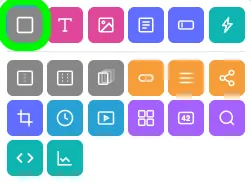
To add one of these widgets to your campaign, either click the Container, Two Column Layout, or Three Column Layout icon in the Add Widgets Panel, or drag the icon into your preview area.
Widget settings
The widget settings pop-up is where you'll make any necessary changes to your Container Widget.
Renaming the widget
- Click the pencil icon in the top-left corner (next to the widget name).
- Enter the new name and press Enter.
CSS ID
The CSS ID (starting with a #) of your widget is displayed in the top-right corner of the pop-up.
Customization
Use the menu on the left side to fully customize your Container Widget. Navigate through the sections using the Back and Next buttons at the bottom of the pop-up. When finished, click the blue Save and Exit button to apply your changes.
Setup (column control)
For Two Column Layout and Three Column Layout Widgets, the Setup section allows you to define column widths.
Adjusting column widths
Use the slider(s) in the bar to adjust the sizing, or enter percentage values directly into the fields below.
Visibility
To control when and where the widget is visible:
-
Go to the Visibility section.
-
Adjust settings for:
- Date and time restrictions
- Pop-up display
- Builder-only visibility
- Country-specific visibility
Learn more about Widget Visibility.
Extras
Learn about the Main Tag, CSS Classes, and Smart Labels.
Nested containers
Need more columns than the default widgets provide? No problem! You can nest Containers or Layout Widgets inside each other to create the desired structure.
Example
To create four columns, nest two Two Column Layout Widgets inside another Two Column Layout Widget.
Container widget styling options
When the Widget is selected, you can customize the styling of the specific widget. Some of the options include changing the background color, the maximum width of the widget, and widget alignment. You will see the following areas of styling available in the Style Panel:
- Widget Visibility
- Widget Background
- Widget Spacing
- Widget Borders
- Widget Text
The two and three-column Containers will also have an additional section for the column spacing.
Related resources
6 Web Design Principles You Should Apply to Your Landing Pages (Blog)
Mobile Best Practices (Help Docs)
Was this helpful?
Thanks — that helps us decide what to fix next.
Sorry this missed. Tell us what you needed and we'll get you an answer — and fix the page.