Countdown Widget
The Countdown Widget displays a countdown on your campaign (in days, hours, and minutes), counting down to a date and time of your choice.
Overview
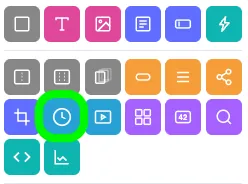
Adding the Countdown Widget
To add the Countdown Widget to your campaign:
- Click the Countdown Widget icon in the Add Widgets Panel, or
- Drag the icon into your preview area.
Widget settings
The widget settings pop-up is where you'll make changes to your Countdown Widget.
Renaming the widget
To change the widget name, click the pencil icon in the top-left corner (next to the name) and type your new name.
CSS ID
The CSS ID (starting with a #) of your widget is displayed in the top-right corner of the pop-up.
Customization
Navigate through each item in the menu on the left side to ensure your Countdown Widget is fully customized. Use the Back and Next buttons at the bottom to move between sections.
When you're finished making changes, click the blue Save and Exit button.
Setup
The Setup section allows you to configure the target date and display settings for your countdown.
Target date configuration
Use the dropdown menus to select the year, month, day, hour (24-hour clock), and timezone.
Display options
By default, the widget will display the number of days left until your target date.
To include Hours or Minutes, check the appropriate box(es) in the Also Show section.
Visibility
Control when and where the widget appears using the Visibility section.
Options include:
- Setting specific dates and times for visibility.
- Displaying the widget only in the Builder.
- Limiting visibility to certain countries.
Learn more about Widget Visibility.
Extras
Learn about the Main Tag, CSS Classes, and Smart Labels settings here.
Countdown styling options
When the Widget is selected, you can customize the styling of the specific widget. Some of the options include changing the font color, the font type, and widget alignment you will see the following areas of styling available in the Style Panel:
- General
- Numbers Text
- Labels Text
- Widget
Related resources
The Essential Interactive Marketing Guide for the Holidays (Blog)
Was this helpful?
Thanks — that helps us decide what to fix next.
Sorry this missed. Tell us what you needed and we'll get you an answer — and fix the page.