Making copies of Field Widgets
When building a form in your campaign, you might want to save time by copying and pasting Field Widgets into your Form Container. However, this approach may not produce the results you expect.
Overview
When setting up a Field Widget for the first time, you need to establish the field type (refer to the Field Widget Help Doc for details). Once a Field Widget is set up and saved, certain settings—such as the field type—cannot be changed.
Key consideration
If you copy and paste a field already set up:
- Shared Settings: Any changes made to the duplicate field will also apply to the original field.
- Shared Data: Information submitted to one field will automatically populate in all instances of that field in the form.
This limitation means copying and pasting fields may not work as intended for creating new, unique fields with similar formatting.
Examples
Copying and pasting Field Widgets
If you attempt to copy and paste a Field Widget that already has its type and settings configured, you’ll encounter the following prompt:
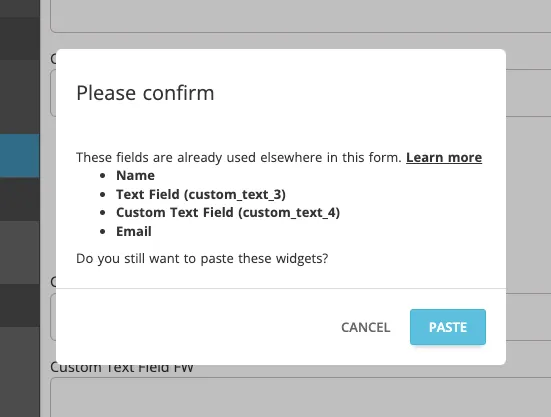
This prompt alerts you that the field(s) you're pasting into your campaign is already being used elsewhere in your Form Container.
Alert in widget settings
If you proceed with pasting the field, you’ll see an alert message at the bottom of the widget settings pop-up:
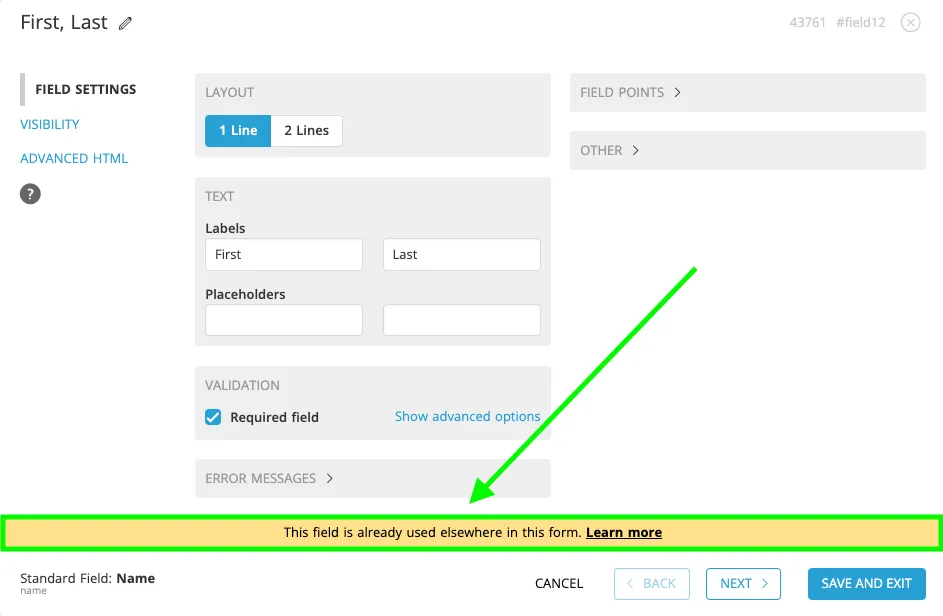
This message warns you that changes to this field will affect all other instances of the field in your form.
Related resources
Was this helpful?
Thanks — that helps us decide what to fix next.
Sorry this missed. Tell us what you needed and we'll get you an answer — and fix the page.