Theme Selector
The Theme Selector provides a gallery of pre-designed color schemes that you can apply to a campaign to change its overall appearance.
Getting there
-
Open the Style Panel in the Campaign Builder.
-
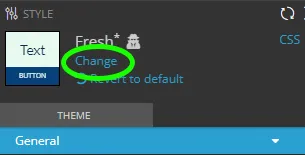
Click the Change link at the top, located under the current theme's name.
Previewing themes
Click a theme’s thumbnail to refresh your campaign and preview that theme. You can preview as many themes as you like.
The selected theme isn’t applied to the campaign until you click the Save button at the bottom of the Style Panel.
Custom themes
Themes that you’ve created and saved will appear with names displayed in red.
Additional theme customization
After selecting a theme, you can continue to update your campaign’s appearance using the Style Panel and/or CSS Editor.
Related resources
Was this helpful?
Thanks — that helps us decide what to fix next.
Sorry this missed. Tell us what you needed and we'll get you an answer — and fix the page.