Dashboard
The Dashboard provides streamlined access to campaign creation tools, recent projects, an analytic overview, and educational resources designed to help you master ShortStack.
The dashboard
Getting to the dashboard
When you log in to ShortStack, you're directed to the Dashboard by default.
From Anywhere in ShortStack:
- Click the Dashboard link on the leftmost side of the navigation menu.
From the Campaign Builder:
- Click the hamburger menu icon (three lines) in the top-left corner/.
- Select Home.
Navigating the home screen
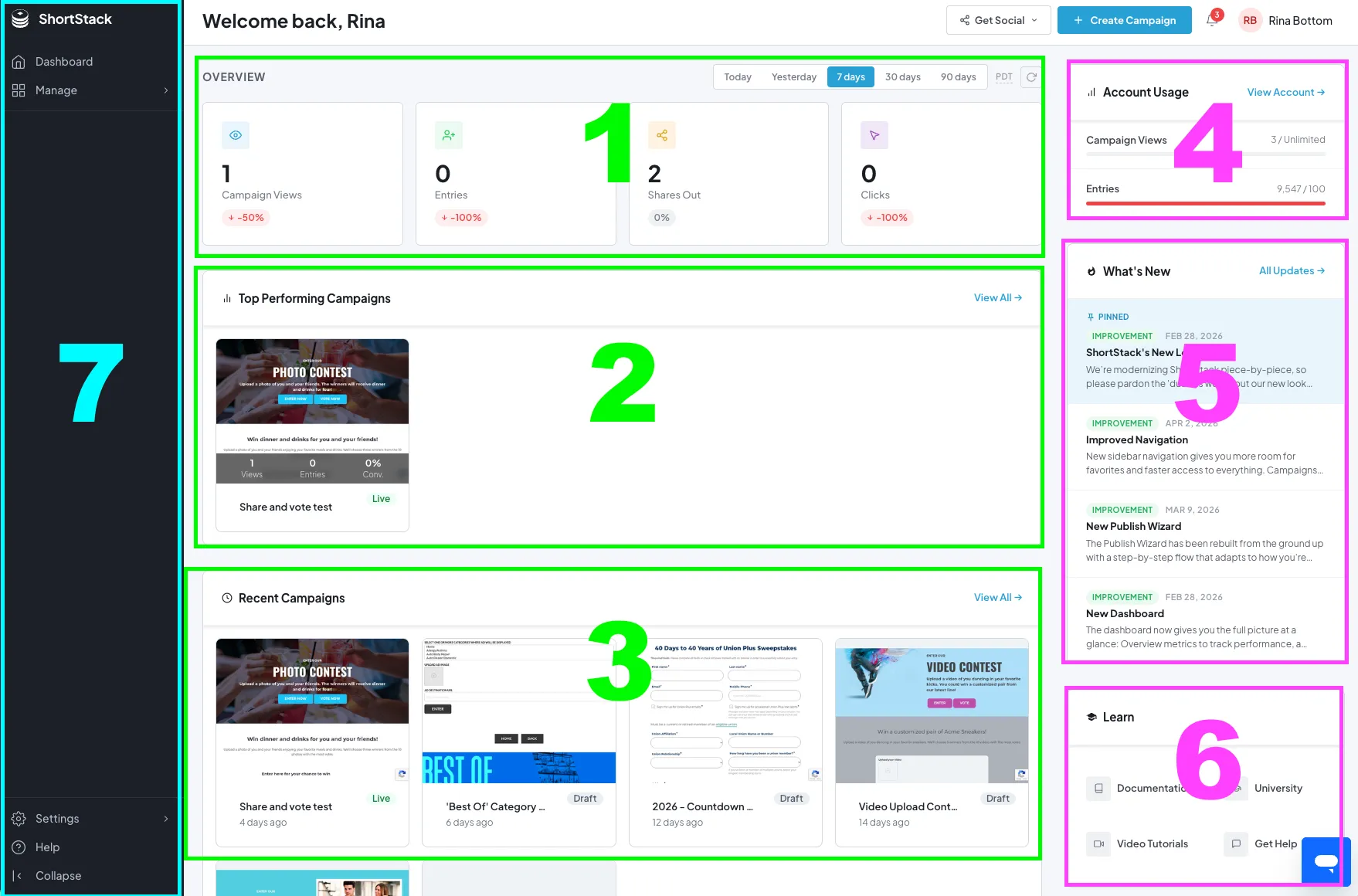
The Home screen is organized into six primary sections, each offering quick access to vital account functions:
1. Overview
This section provides high-level, aggregate analytics across all live campaigns, including:
- Campaign Views
- Entries
- Shares
- Clicks
For a deeper dive into data, visit the Analytics documentation.
2. Top performing campaigns
Available on Scale Plan and higher.
Displays the top three campaigns based on views, entries, and conversion rates.
3. Recent campaigns
Provides immediate access to your latest projects:
- Open a Campaign: Click the campaign thumbnail or name to launch the Campaign Builder.
- View Analytics: (Scale Plan or higher) Click the Analytics icon to view a performance summary in a dedicated pop-up.
4. Account usage
Monitor real-time data regarding campaign views and stored entries to ensure your account remains within its limits and to proactively manage potential overage fees.
5. What's new
Stay informed on the latest platform updates and feature releases. Click All Updates for comprehensive release notes.
6. Learn
Located beneath your recent campaigns, this section features resources to help you maximize the ShortStack platform:
- Documentation: Access ShortStack’s full library of technical guides and help articles.
- University: A structured, step-by-step learning program covering all platform features.
- Video Tutorials: Embedded walkthroughs for visual, guided learning.
- Get Help: A quick-access menu for support tools and troubleshooting.
7. Navigation
Navigate throughout ShortStack using the primary sidebar. Click Manage to access various managers and tools. At the bottom of the navigation section, you will find Account Settings, where you can manage your Plan & Billing and your Profile.
Additionally, you can access the Help Menu for support or Collapse the navigation menu to expand your workspace.
Learn more about Navigating Your Account.
Need additional Assistance?
If you can't find the answer you need in these resources, you can always contact our support team at support@shortstack.com.
Related resources
The Essential Guide to Online Contest Marketing (Blog Post)
Was this helpful?
Thanks — that helps us decide what to fix next.
Sorry this missed. Tell us what you needed and we'll get you an answer — and fix the page.