Tracking Widget
The Tracking Widget provides an easy way to set up event tracking and analytics for your campaign using Google Analytics or the Facebook Pixel.
Overview
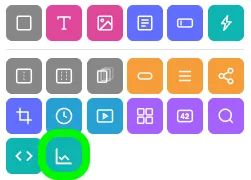
Adding the travel widget
To add the Travel Widget to your campaign:
- Click the Travel Widget icon in the Add Widgets Panel, or
- Drag the icon into your preview area.
Note: Tracking Widgets are invisible in live campaigns, so you can place them wherever works best for campaign organization.
The widget only tracks interactions on the live campaign, not within the Campaign Builder.
Widget settings
The widget settings pop-up lets you customize your Tracking Widget.
Renaming the widget
Click the pencil icon in the top-left corner (next to the name) and type your new name. Confirm by clicking the blue check button.
CSS ID
The CSS ID (starting with a #) is displayed in the top-right corner of the pop-up.
Customization
Use the menu on the left to navigate settings. Use the Back and Next buttons at the bottom to move through sections.
When finished, click the blue Save and Exit button.
Note: To add Google Tag Manager (GTM) to your campaign, use a Code Widget, not the Tracking Widget.
Platform
In the Platform section, select your tracking platform by clicking the corresponding radio button:
- Google Analytics 4 (GA4)
- Facebook Pixel
Setup
The Setup section prompts you to input platform-specific details:
- Google Analytics 4 (GA4): Enter your Measurement ID.
- Facebook Pixel: Enter your Pixel ID.
Events
The Events section allows you to configure the events you want to track.
Google analytics 4 (GA4)
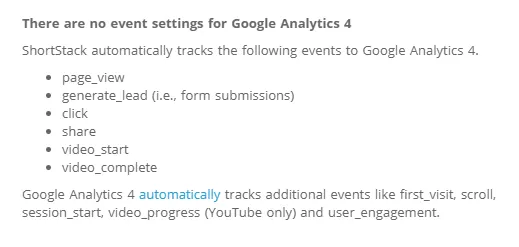
GA4 requires no additional setup. ShortStack and GA4 automatically track several events, listed in the platform.
Facebook pixel
-
Available Events:
- Page View (default label: "Page View").
- Form Submit (customizable label: "Lead" or "CompleteRegistration").
-
Activation: Check the box next to the event type to activate tracking.
Visibility
Visibility for Tracking Widgets works as follows:
- Normal (active): The widget is functioning.
- Inactive: The widget is disabled.
If you set date or country-specific visibility settings, those determine when and where the Tracking Widget is active.
Learn more about Widget Visibility.
Related resources
Using External Analytics Apps (Video)
How to Plan and Promote a Lead Generation Campaign (Blog)
Was this helpful?
Thanks — that helps us decide what to fix next.
Sorry this missed. Tell us what you needed and we'll get you an answer — and fix the page.